
Your first session in Muretto: from the recorder to the debrief
Install the recorder, drive, and open the wall. A short guide to getting your first laps into Muretto and finding where the time went.
Scorsa Team3 min read
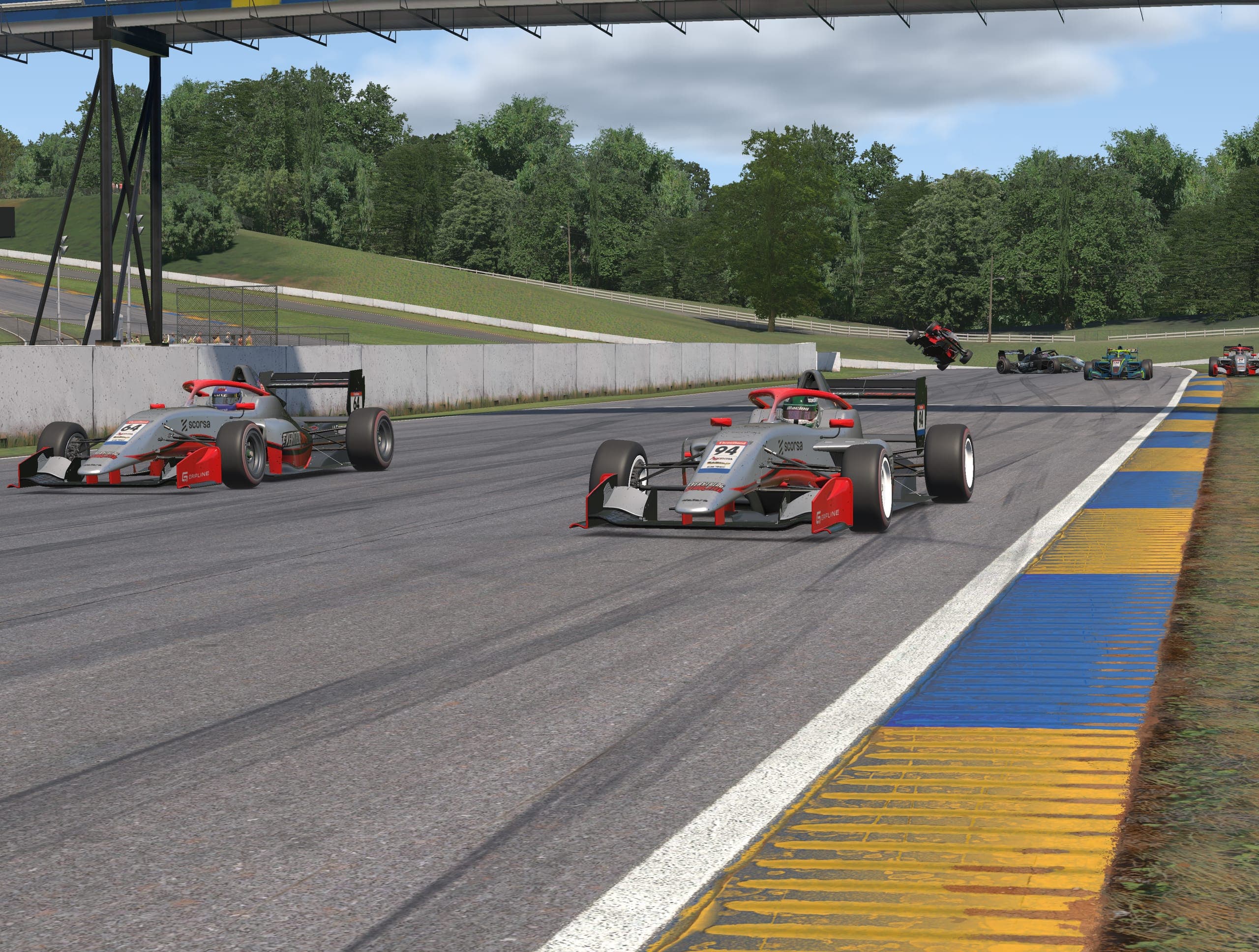
Muretto is Italian for the pit wall: the place where the team watches the car, reads the data and makes the calls. This post walks through a first session, from installing the recorder to comparing two laps and sharing what you found.
1. Create your garage
Sign up at muretto.scorsa.com. It is free, and the free plan covers recording, analysis, live timing, spotting, teams and share links. If you race on iRacing, link your account while you are there.
Only the driver whose laps are recorded ever chooses a plan. Engineers, spotters, coaches and viewers never pay, so invite the whole crew.
2. Run the recorder
The recorder is a small Windows tray app that runs beside the sim. You do not tell it which sim you are in: it finds iRacing, Le Mans Ultimate, rFactor 2, ACC, AC EVO, Assetto Corsa or F1 23–24 on its own and starts recording when you go on track.
Every lap is kept with its telemetry. Your fastest lap in each condition keeps its onboard video for good, and other video is kept for seven days on the free plan.
If you already have logger files, you do not need the recorder for them. MoTeC (.ld with .ldx), Pi Toolbox (.pds), VBOX, RaceBox and RaceChrono (.vbo) and CSV exports open as they are, and iRacing .ibt files import from your PC.
3. Open the wall
Everything else happens in a browser, on any screen. Muretto is organised around three spaces:
- Live wall, while the car is on track: timing tower, track map, onboard video, live telemetry and gauges.
- Analysis, after the lap: laps overlaid on one linked cursor, with delta and sectors.
- Debrief, after the race: stints, slow laps and fuel calls collected as the race ran, on one page.
The engineer can sit on a second monitor, the spotter on a phone, and the team stream can pull the wall into OBS. Any panel pops out to its own window, so you can spread the wall over as many screens as you have.
4. Compare two laps
This is where most of the time is found. In Analysis, pick a main lap and add a reference lap: your best, a team-mate's, or a lap from another session entirely. Every panel on the page follows the same cursor.
A good first sheet has four things on it:
- Overlay & Delta for speed on both laps, with the time gap between them, corner by corner.
- Track Map, coloured by speed or by where the lap gains and loses against the reference.
- Telemetry Chart for throttle, brake and steering in stacked lanes.
- Lap Video, so you can see what the driver saw at the point the gap opened.
Scrub the video and everything else moves with it. Find the first corner where the delta grows, then read the inputs: was it a later brake point, a lower minimum speed, or a slower throttle pick-up?
The Segments panel does the hunting for you. It lists time per track segment against the reference, worst first, so the first line is usually the corner to work on.
5. Share it
When the session ends, the debrief page turns into a race report you can send as a link. Anyone with the link can read it without an account.
Where to go next
The ready-made displays will take you a long way, but Muretto is built so you can make the screen your job needs. The next posts in this series cover building your own workbook, and writing math channels: your own channels, calculated from anything the car logged.